STL vs 3MF vs OBJ vs STEP: 3D Export Formats Explained
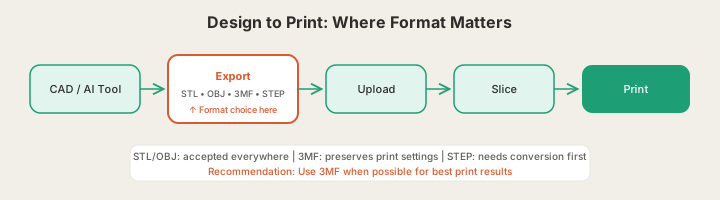
Choosing STL vs 3MF (or OBJ, or STEP) when you export a 3D model determines whether your print comes out with sharp edges or faceted curves, whether color data survives the handoff, and whether your service bureau can even open the file. STL, OBJ, 3MF, and STEP each solve different problems — choose the wrong one and you lose geometry, color, or scale before the first layer ever prints.
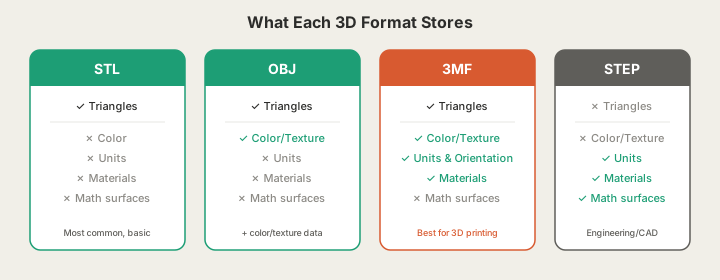
STL vs 3MF, OBJ and STEP: What Each Format Stores
STL — The Universal Baseline
STL encodes geometry as a mesh of triangles — nothing else. No color, no material, no scale units. Every slicer reads STL without question, but curved surfaces become faceted polygons. The more triangles, the smoother — and the larger the file. /docs/file-formats lists exactly which files the upload accepts and why.
OBJ — Geometry Plus Color
OBJ adds support for vertex colors, UV-mapped textures, and material libraries (.mtl files). The catch: color splits into a companion .mtl file. Send the .obj without the .mtl and the color is gone.
3MF — Built for Manufacturing
3MF packages geometry, color, material assignments, scale units, build orientation, and support hints into a single compressed container. Because it defines units explicitly (millimeters), you eliminate the unit-ambiguity problem that causes STL files to arrive 25.4x too large or too small.
STEP — Parametric Precision
STEP stores geometry as mathematical surfaces — NURBS, B-splines, analytical cylinders — not triangle approximations. A sphere is an exact sphere. A drilled hole is a mathematically precise cylinder. Preferred for mechanical parts where tolerances matter.
Format Comparison at a Glance
| Feature | STL | OBJ | 3MF | STEP |
|---|---|---|---|---|
| Universal slicer support | Yes | Partial | Yes (modern) | Partial |
| Stores color / texture | No | Yes (+ .mtl) | Yes (built-in) | No |
| Explicit scale units | No | No | Yes (mm) | Yes |
| Build orientation hints | No | No | Yes | No |
| Parametric/exact geometry | No | No | No | Yes |
| File size (typical) | Medium | Medium | Small (compressed) | Medium |
| Best for | Compatibility | Color/texture | Modern FDM/SLA | Engineering |
Which Format to Use: Decision Guide
| Your situation | Recommended format |
|---|---|
| Uploading to any print service for the first time | STL (safest) |
| Full-color or multi-material print | 3MF |
| AI-generated model from X3D /design | 3MF or STL |
| Mechanical part from CAD | STEP |
| Photogrammetry/scanned object with texture | OBJ (zip with .mtl); STL or 3MF to order from us |
| Slicer project to reopen later | 3MF |
One caveat if you are ordering from us: /print takes STL and 3MF, not OBJ or STEP. Keep the OBJ or the STEP as your working file, then convert to STL or 3MF before you upload. STL goes up to 100 MB and any 3MF up to 40 MB.
Common Mistakes
- Ignoring units on STL — if CAD exported inches and slicer assumes mm, model arrives 25.4x wrong size
- Uploading OBJ without the .mtl — color data is lost
- Using STL for high-tolerance parts — triangle approximation introduces measurable error on curves
- Treating format as a printability guarantee — a valid 3MF can still contain non-printable geometry
FAQ
STL vs 3MF: which is better for 3D printing?
For most modern workflows, 3MF. It stores explicit units, build orientation, and material data in a single file, eliminating several common print errors. STL remains necessary for older software.
Why does my STL arrive at the wrong scale?
STL stores no units. The exporter may have assumed inches while the slicer assumed millimeters, producing a 25.4x size discrepancy. Fix by scaling in the slicer or re-exporting.
What format for AI-generated 3D models?
3MF is best when available — it carries units and orientation. STL works for universal compatibility. STEP doesn't apply to AI-generated models since they're meshes, not parametric geometry.
Price it now
What would yours cost?
A real example, priced from our India rates: a 50 g PLA part comes to ₹400 printed, plus ₹79 delivery in India. Change the weight, material or quantity below and the price follows.
- 50 g × ₹8/g, per part
- ₹400
- Delivery
- ₹79
An estimate from the weight you entered. The real quote weighs your file.
Two ways to your real price
Have a file?
Upload it. See the exact price.
Drop in your STL or 3MF. We slice it and price the grams it really uses, in rupees. No account needed to see it.
Only an idea?
Describe it. We’ll email you a price.
No file, no problem. A few words on what it is and how big is plenty to start.
Or write to contact@x3dstudios.com